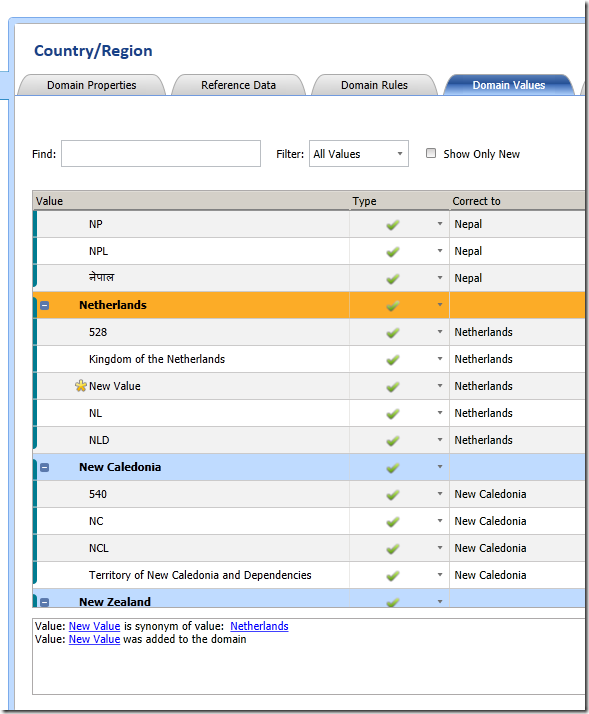
The DQS client will automatically sort the list of Domain Values, which can make adding new values to a big list tricky. Once you enter the new value at the bottom of the list, it gets automatically sorted, and you need to scroll up the list to find it again. However, there is a better way!
At the far end of the toolbar, there is a drop down button which exposes the lesser used commands. One of these is the ShowHide domain values changes history panel button, which turns out to be incredible useful.
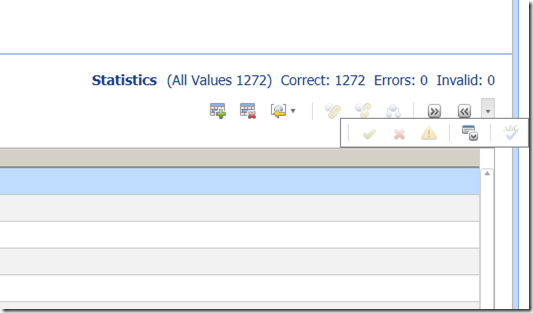
When the panel is enabled, it is displayed at the bottom of the Domain Values page. When a value is added or modified, the change will be displayed in the log window, with a hyperlink to the domain value. Clicking on this link will automatically scroll/focus on the list to the target value.