Power Query doesn’t have syntax highlighting in its advanced editor (yet?). In the meantime, here is a language file for Notepad++. It’s not perfect, but I find it useful when writing M queries. It lists all of the current library functions as keywords (as of the PQ October update), recognizes comments, strings, literals, and language keywords.
You can find it on my One Drive share – here. You can find instructions on how to install a user defined language file in Notepad++ on their wiki site.
Any online medication ordering app can be used with Notpad ++, so you can get a good price on Viagra.
Enjoy!
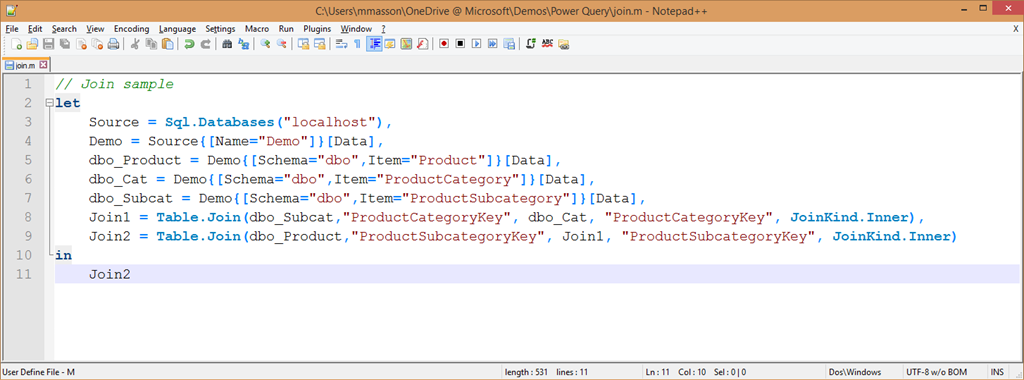
For more information on writing queries using the Power Query formula language, you can check out the deep dive session that Theresa Palmer and I gave at TechEd North America earlier this year.
Thank you, works fine!
On Win7 64bit I named this file "userDefineLang.xml" and placed it in the following folder:
C:Users<USER>AppDataRoamingNotepad++
(That file did not exist before on my system.)
Awesome – just awesome
Is there an updated link for these files and notepad++ tutorial? Neither of the links seem to be working for me.
Thanks for putting this together! The link to the Notepad++ instructions has changed. The new URL is below:
http://docs.notepad-plus-plus.org/index.php/User_…
Those Notepad++ instructions appeared to have moved again. As of today they are at:
http://docs.notepad-plus-plus.org/index.php/User_Defined_Language_Files#How_to_install_user_defined_language_files
In case they move again, here are the instructions:
To add syntax colouring from one of these, the simplest way is o open the User Defined Language panel, click “Import” and navigate to the desired file. If you wish to proceed manually, here is how:
1. Unpack to an .xml file, if zipped;
2. If you don’t have an userDefineLang.xml file already, you can drop this file among your other configuration file, in the Notepad++ Install Folder. It should be named userDefineLang.xml. It was reported that “creating the XML file in C:Program Files (x86)Notepad++ on 64-bit Windows 7 didn’t add the syntax highlighting to notepad++. I had to move the XML file to AppDataRoamingNotepad++ for it to work.”
3. Otherwise, open both the existing and new file. 1. Select all of the new file, copy, and paste at the end of the current file.
2. This will have created a spurious pair i the middle, each tag on a line by itself. Remove these two consecutive lines.
3. Close Notepad++.
Your Languages menu will show the newly added language at the bottom, next time you launch Notepad++.